This article explains how to change a PDB Character Set from WE8MSWIN1256 to ALT32UTF8 within Oracle database 12cR2 (12.2.0.1) using the DMU tool.
Table of Contents:
- What we are going to do “Plugging a PDB with different Character SET”
- Migration of a PDB Character SET
1. What we are going to do “Plugging a PDB with different Character SET”:
What we have:
– a CDB “wadhah” with a PDB “wadhahpdb” when they have the same character Set WE8MSWIN1252
– a CDB “daouehi” with the character Set AL32UTF8
GOAL; Unplug the PDB wadhahpdb from the CDB wadhah —> plug the PDB wadhahpdb with the CDB daouehi
| Name | Character SET | |
| CDB | Daouehi | AL32UTF8 |
| PDB | Wadhahpdb | WE8MSWIN1252 |
| CDB | Wadhah | WE8MSWIN1252 |
Step 1: Create a pluggable database 12cR2 from PDB SEED using DBCA (Create the PDB wadhahpdb)
Step 2: Unplug a pluggable database 12cR2 using DBCA (The PDB wadhahpdb)
Step 3: Create a pluggable database 12cR2 from Unplugged PDB using DBCA (The PDB wadhahpdb)
After the plugging of the PDB wadhah:
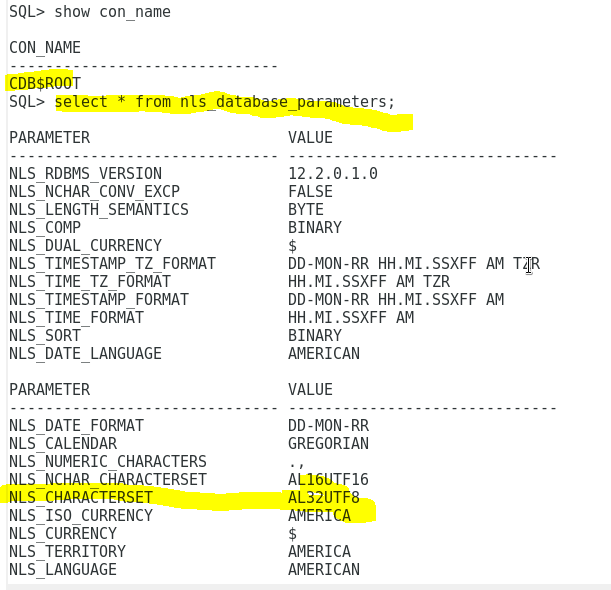
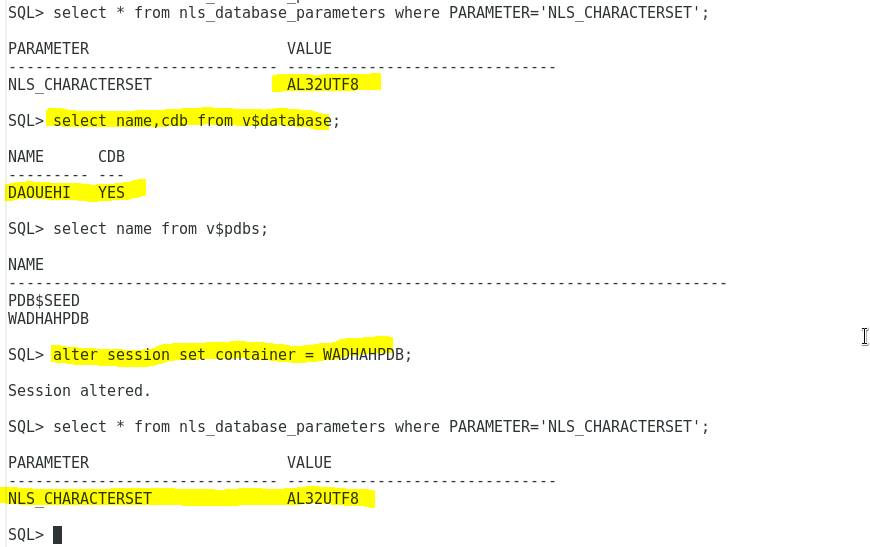
a. Check the Character SET of the CDB “daouehi”:
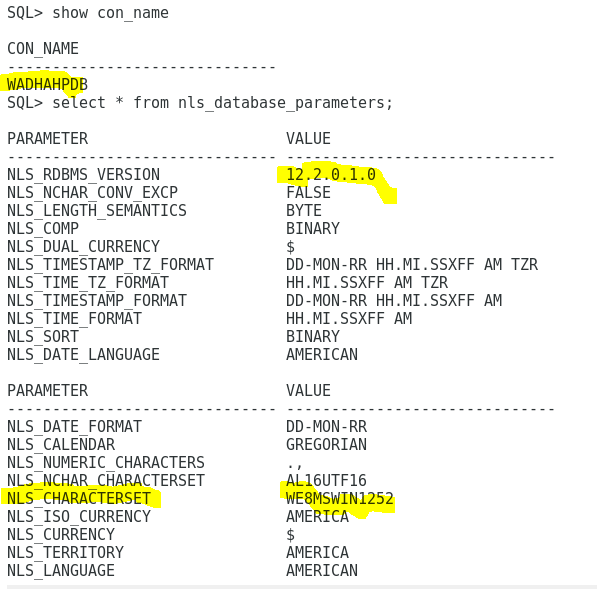
b. Check the Character SET of the PDB “wadhahpdb” within the CDB “daouehi”:
2. Migration of a PDB Character SET:
We are using the Oracle database tool Database Migration Assistant for Unicode.
Step 1: Execute the DMU tools
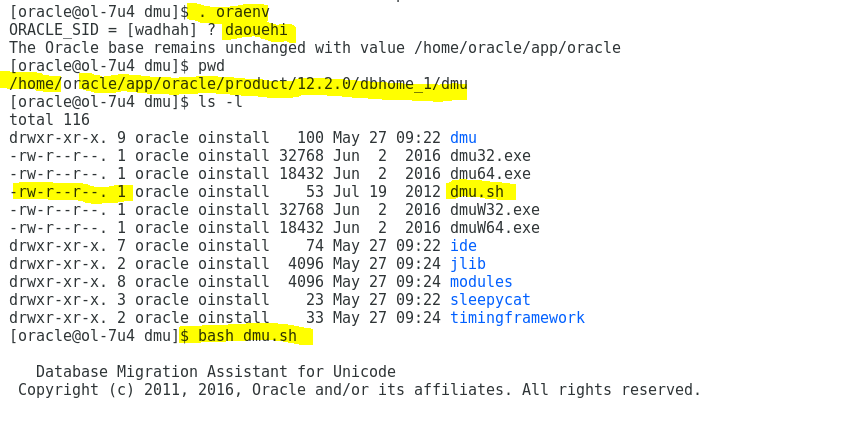
Step 2: Create a connection to the PDB:
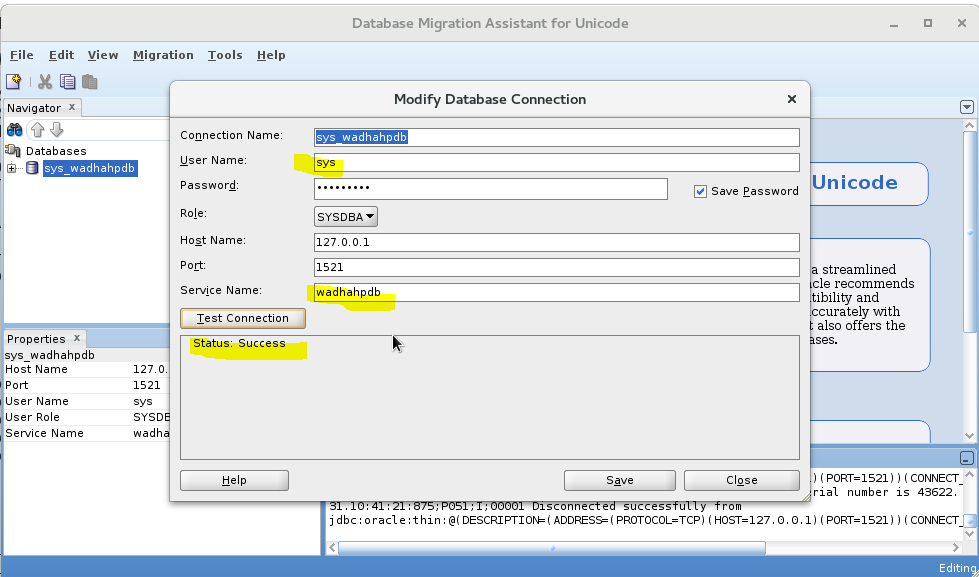
Step 3: Explore the connection: We have an error due to a package not found.

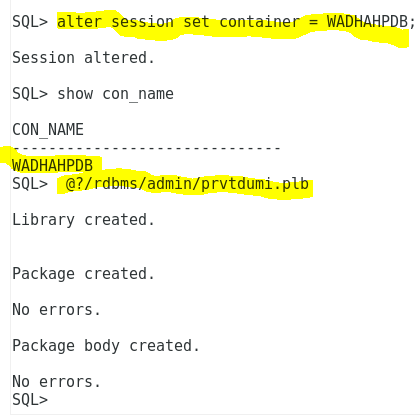
Step 4: Create the package DBMS_DUMA_INTERNAL:
Step 5: Creation of DMU repository in the database PDB “wadhahpdb”.
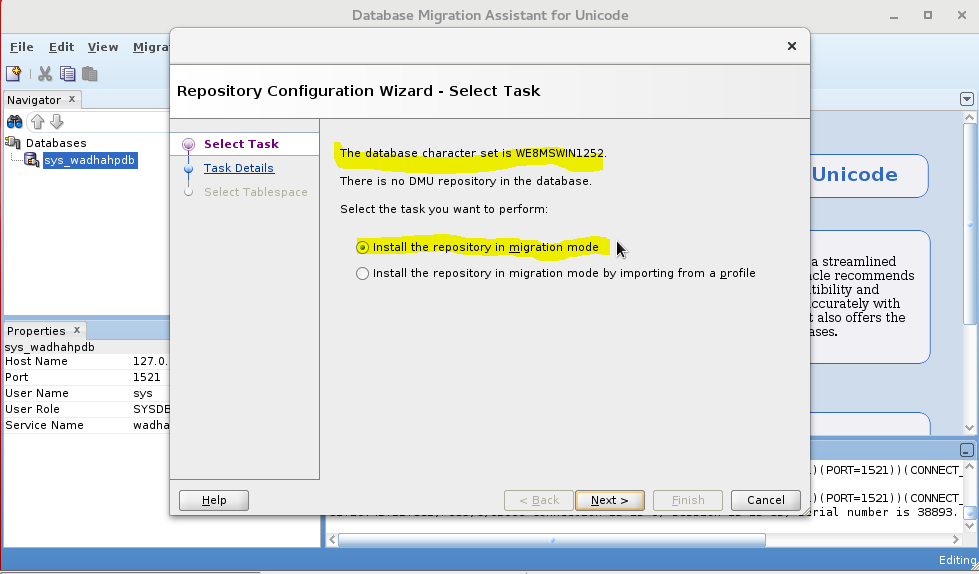
Step 6: Select the target character set for migration for the repository:
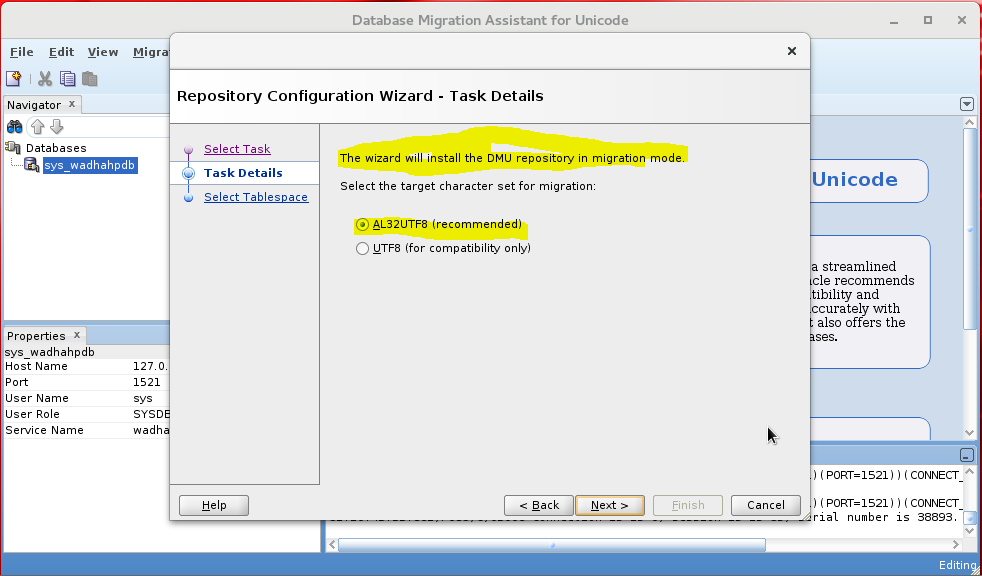
Step 7: Select the tablespace destination of the DMU repository:

Step 8: The creation of the repository is finished and now to San the database:
Note: The database must be scanned to test all list its character data for conversion issues.

Step 9: Scan database:
Note: Verification of the conversion from the current database character set WE8MSWIN1252 to AL3UTF8.

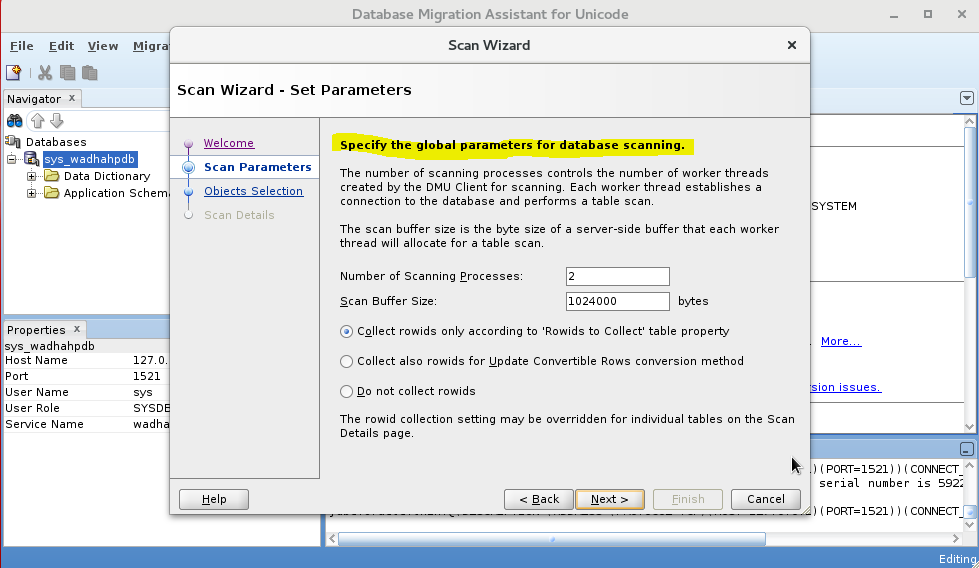
Step 10: Specify some parameters for database scanning: Default
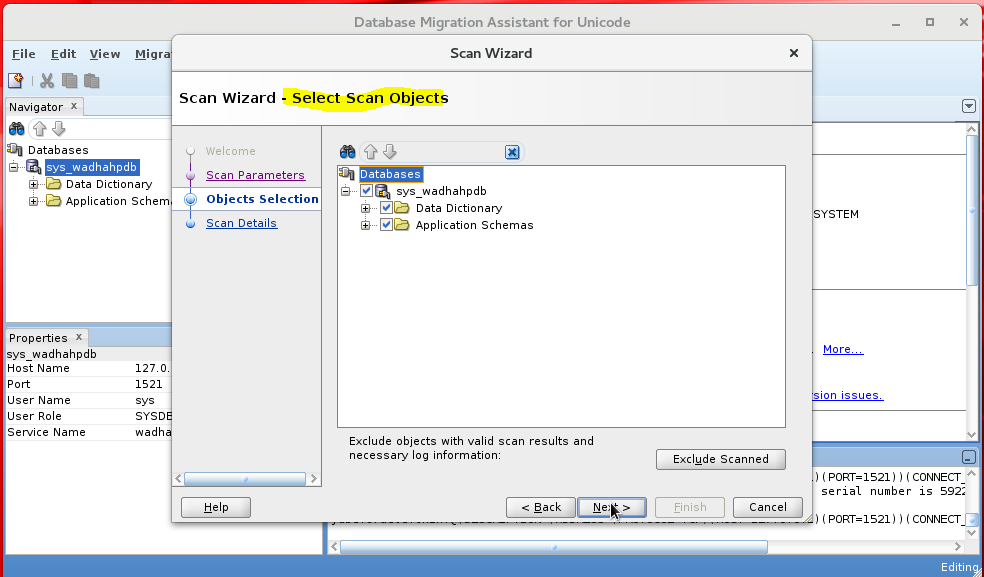
Step 11: You can exclude objects from the verification process:
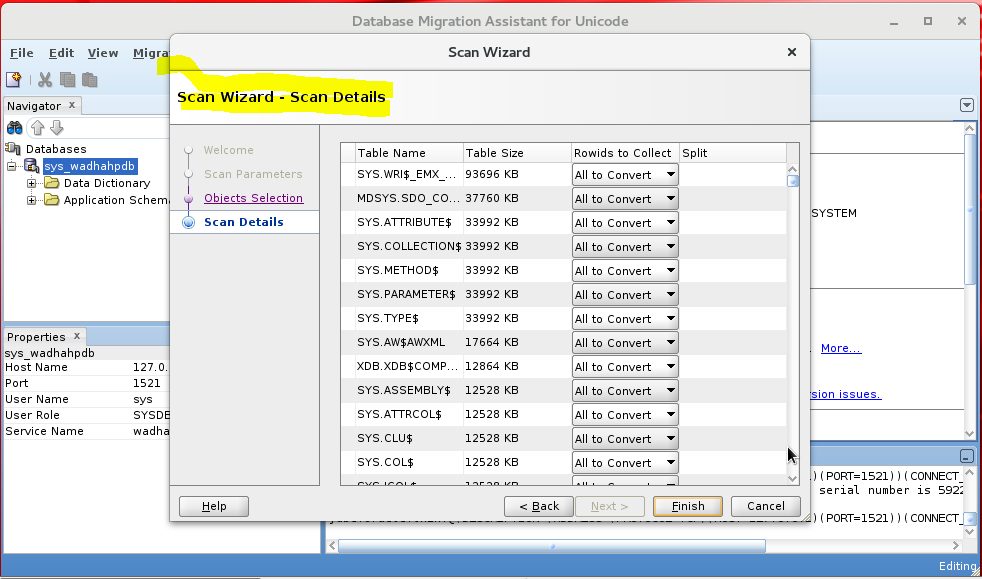
Step 12: Scan details:
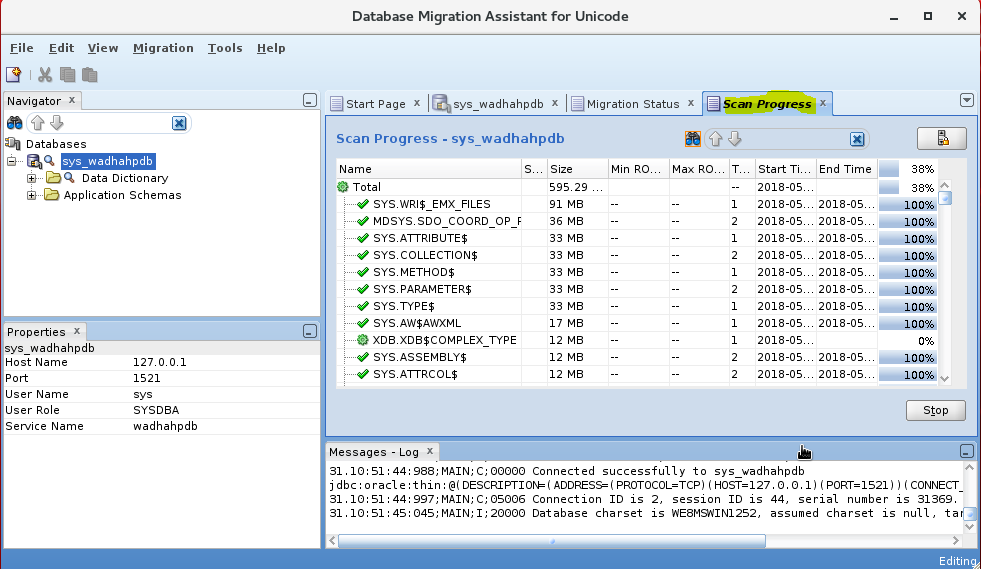
Step 13: Scan progress:
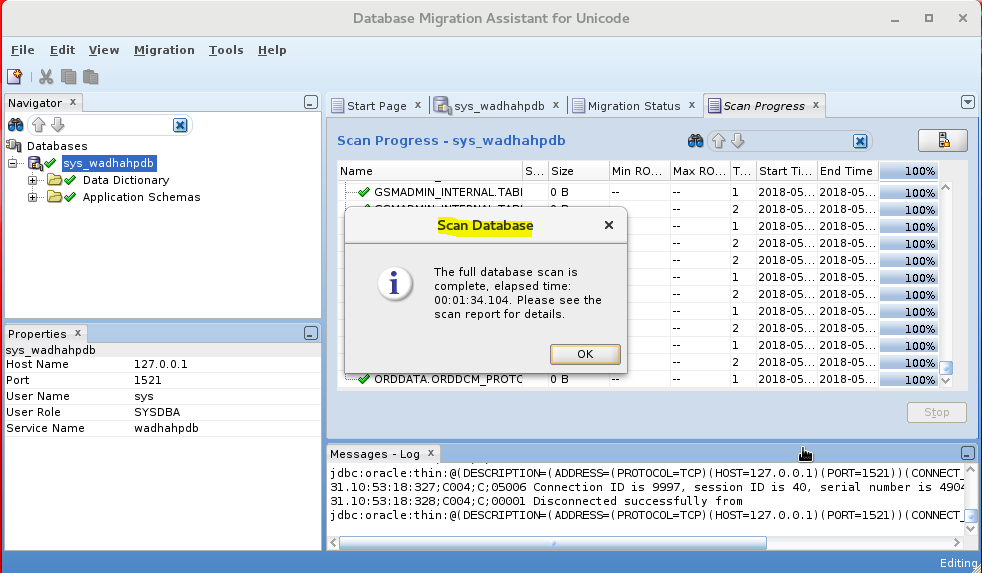
Step 14: Scan Database completed:
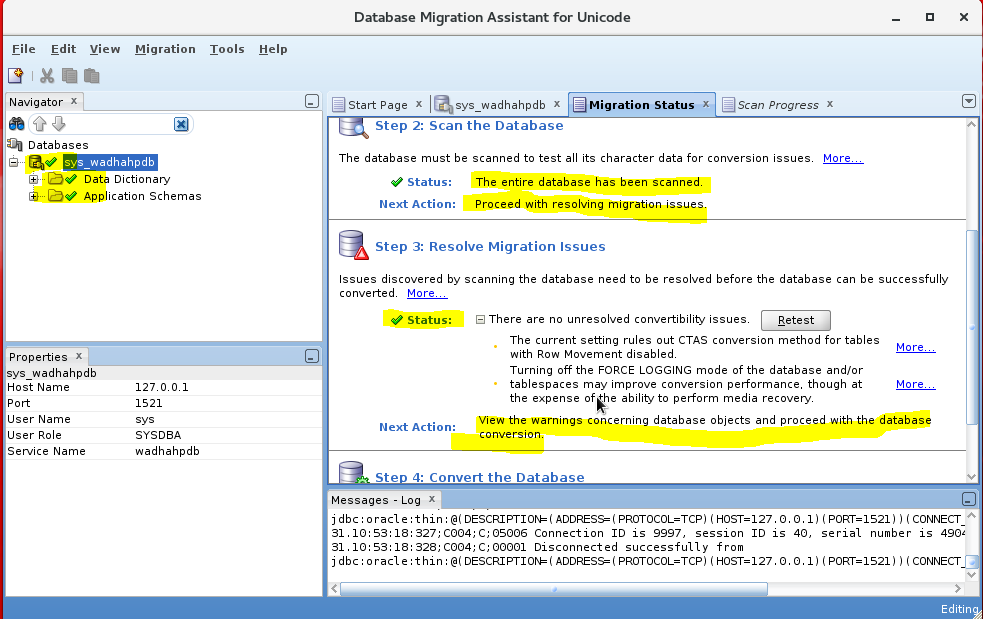
Step 15: Migration status:
Step 16: Begin the database Character SET Convert :
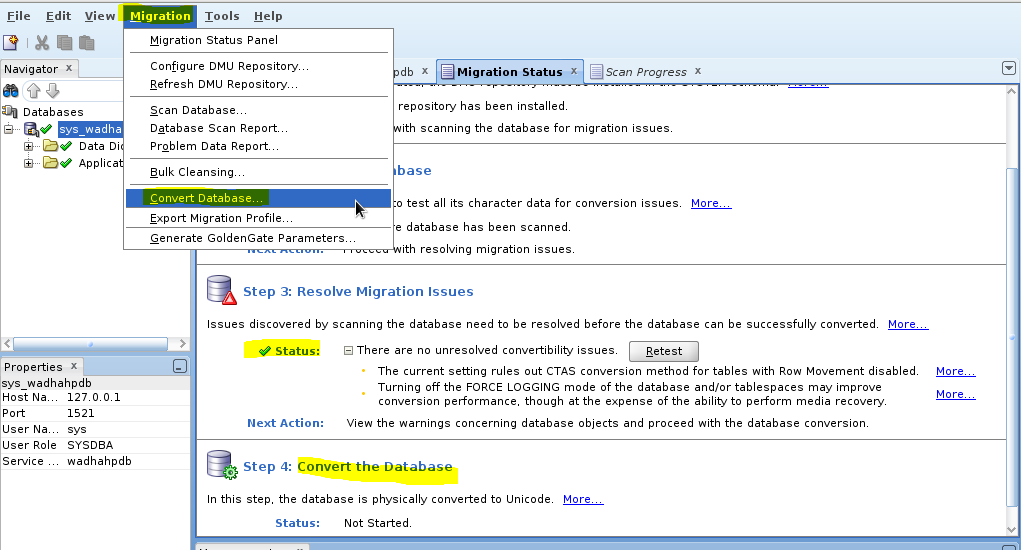
Step 17: Step to convert the character set:
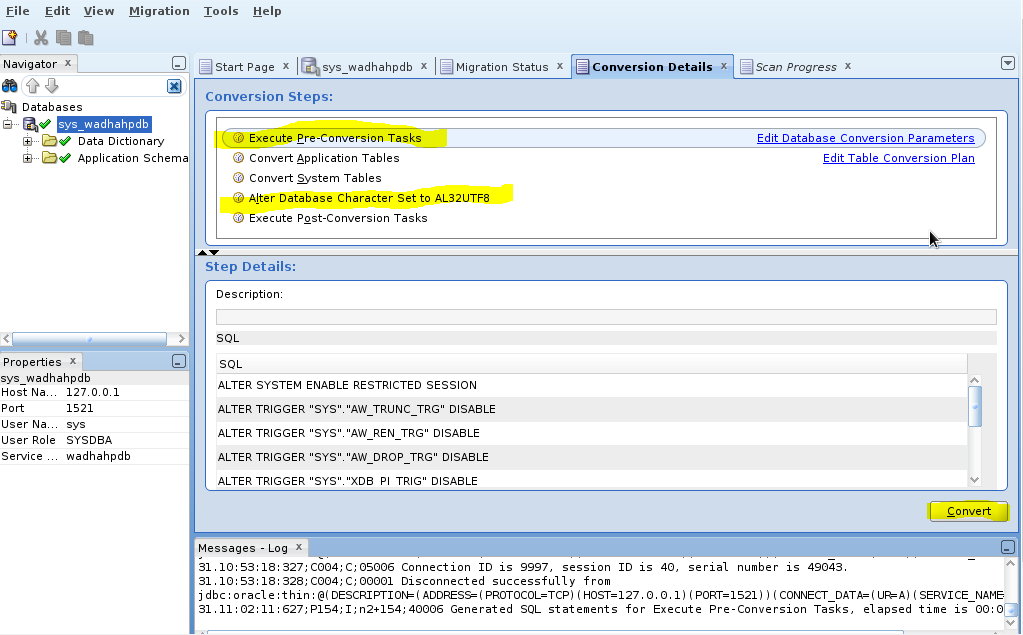
Step 18: The convert steps will rescan:
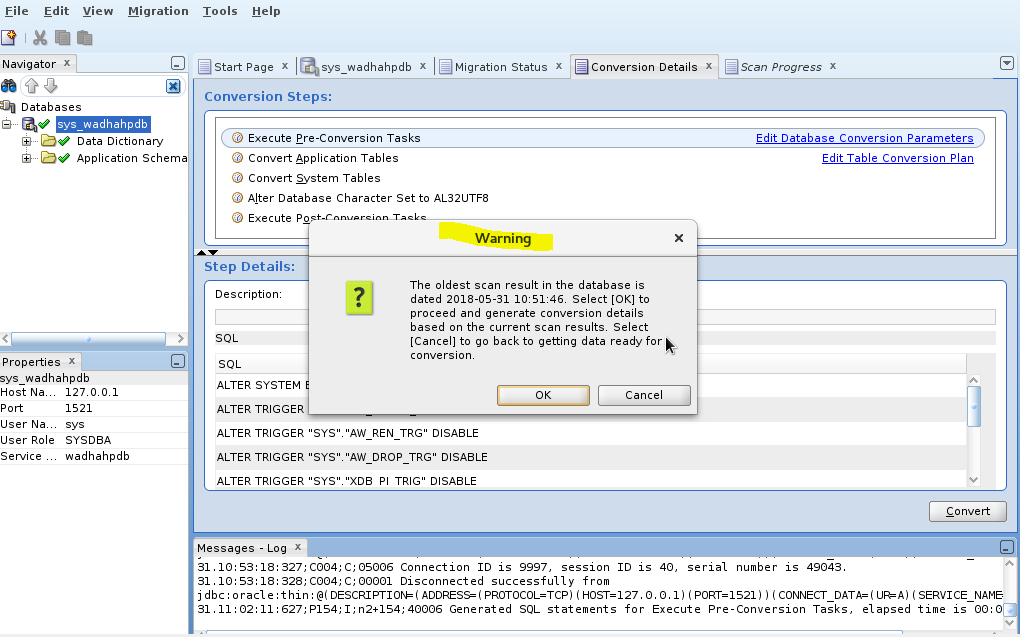
Step 19: Start the steps to convert:
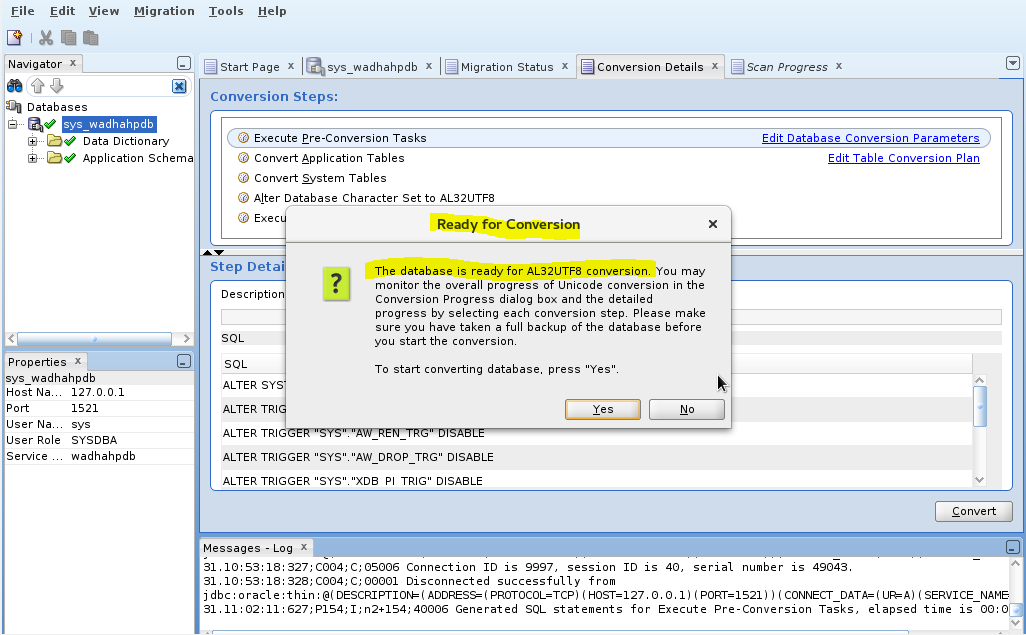
Step 20: Rescan:
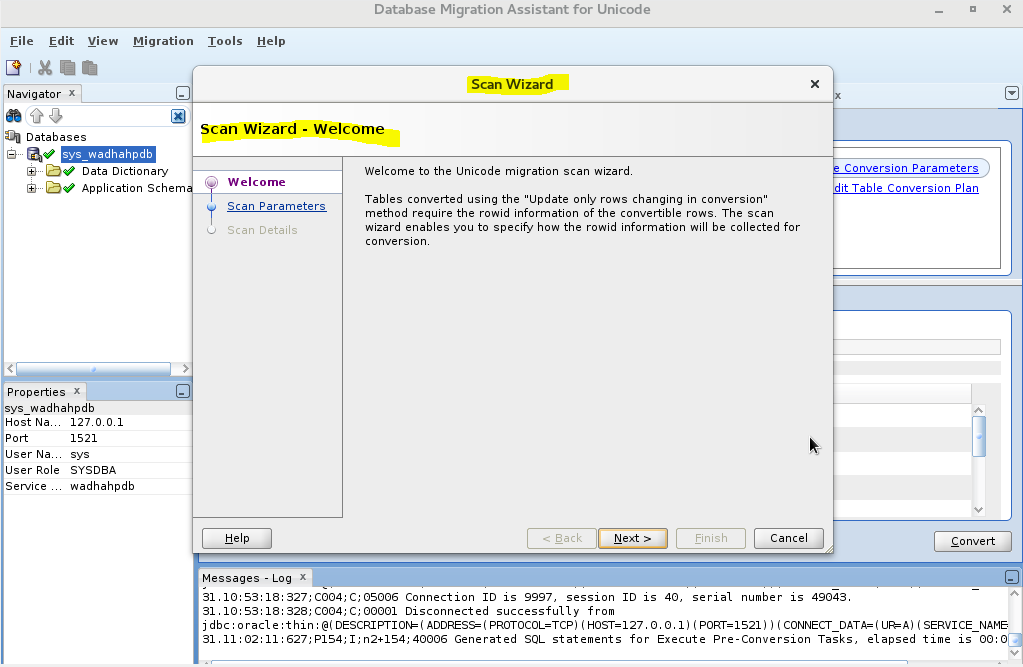
Step 21: Respecify the parameters for scanning:
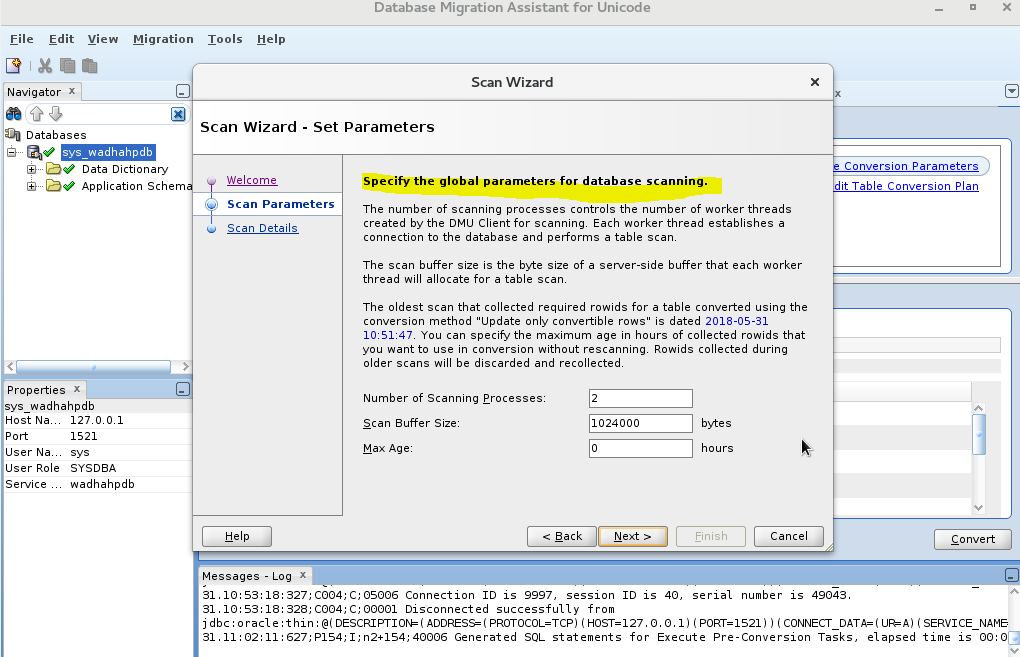
Step 22: Fnish the san:

Step 23: Processing:

Step 24: Problem in the step Convert Application Tables:
Note: ORA-46385: DML and DDL operations are not allowe on the table “AUDSYS”.”AUD$UNIFIED”:
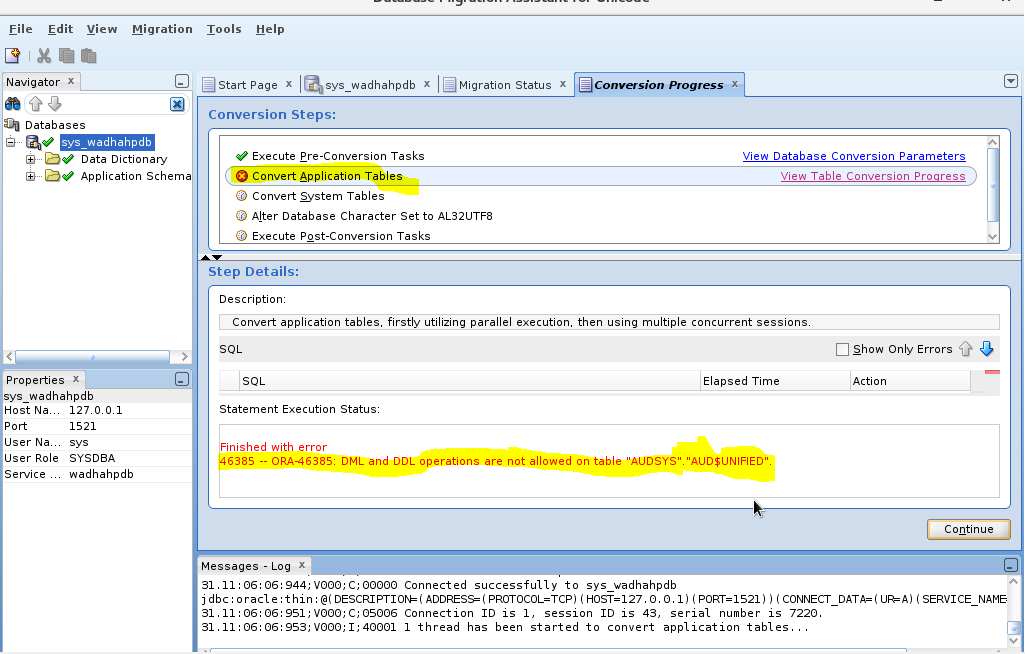
Step 25: Skip the error of the table “AUDSYS“.”AUD$UNIFIED“:
Note: While the Unified auditing is disabled, we get the error
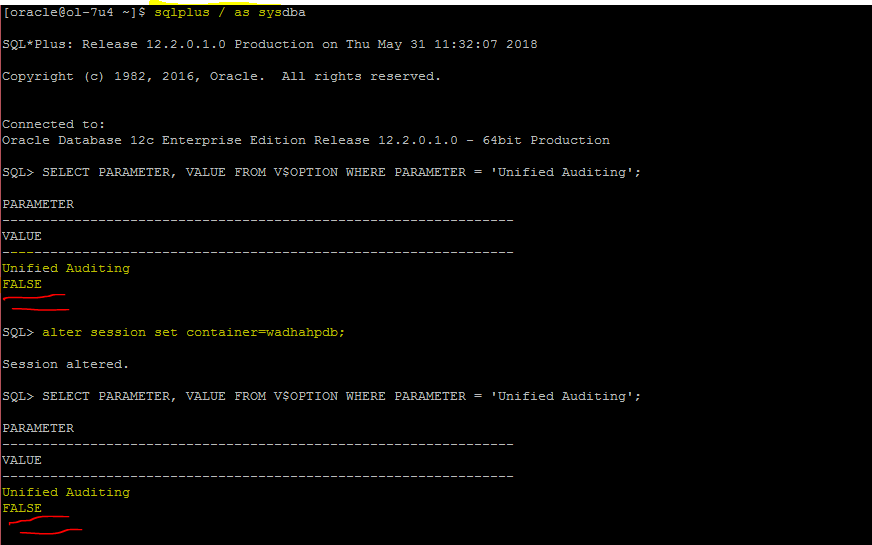
Step 26: Skip all LMD and LDD on the table AUDSYS.AUD$UNIFIED:

Step 27: Migration of the chacarter set has been done:
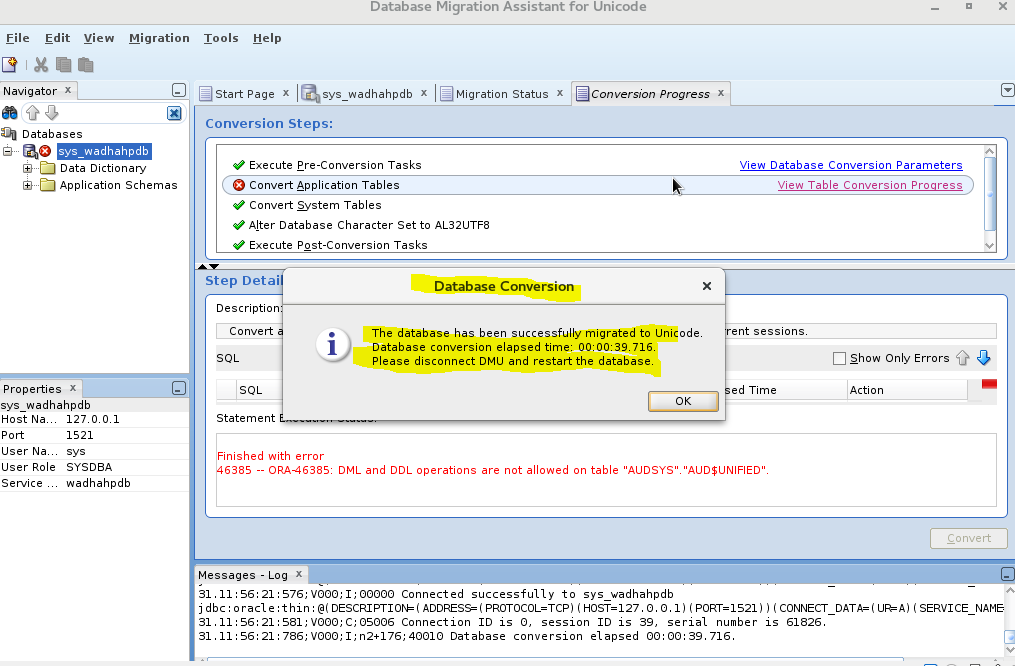
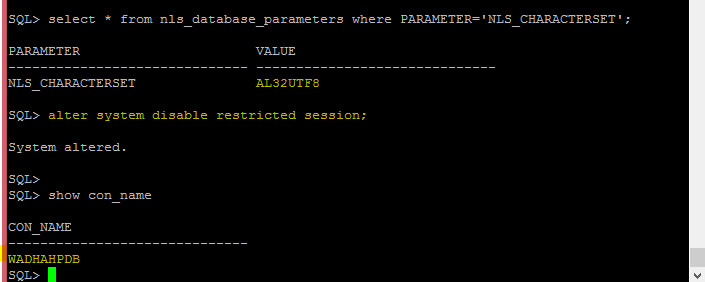
Step 28: Verification of the new character set:
Step 29: After the migration you can disable the restricted session:
Step 30: After the migration you can Uninstall the DMU repository:

Conclusion:
This article explains how to Migrate a PDB Character set using DMU within Oracle database 12cR2 (12.2.0.1).
 Google+
 Facebook